
WordPress makes it possible for anyone to create a website, blog, online store, or business platform. However, owning a website also means taking responsibility for protecting its files, users, and information.
A hacked website can cause serious problems. Attackers may insert malicious code, redirect visitors to dangerous websites, steal information, change website content, or make a website unavailable.
The good news is that you can reduce many common security risks by following practical website security measures.
Whether you operate a personal blog, business website, online store, or digital publishing platform, this guide explains how to protect your WordPress website in 2026.
The Short Version
- Keep WordPress, plugins and themes updated.
- Use strong, unique passwords and two-factor authentication.
- Install only trusted plugins and delete the ones you do not use.
- Keep tested backups in a separate location.
- Have a recovery plan before something goes wrong.
Table of Contents
- Why WordPress website security matters
- Keep WordPress updated
- Use strong passwords
- Enable two-factor authentication
- Protect your WordPress login page
- Use trusted plugins and themes
- Remove unused plugins and themes
- Back up your website regularly
- Choose secure hosting
- Install an SSL certificate
- Use a website firewall
- Give users only necessary permissions
- Protect your administrator account
- Monitor website activity
- Scan for malware
- Secure website file access
- Protect your computer
- Be careful with suspicious emails
- Your WordPress security checklist
- What to do if your WordPress site gets hacked
- Frequently asked questions
1. Why WordPress website security matters
Your website may contain valuable information, including articles, customer details, user accounts, orders, uploaded files, and business information.
If an attacker gains unauthorized access, they may misuse this information or damage your website.
Common WordPress security risks include:
- Weak or stolen passwords.
- Outdated WordPress installations.
- Vulnerable plugins and themes.
- Malware and malicious scripts.
- Insecure hosting configurations.
- Unauthorized administrator accounts.
- Poor backup practices.
- Phishing attacks against website owners.
Website security is not a one-time task. It requires regular maintenance and preparation.
The official WordPress security handbook recommends reducing unnecessary access, using trusted software, maintaining updates, and preparing reliable backups.
Start Here: 5 Things to Do Today
| Priority | Action | Why It Matters |
|---|---|---|
| 1 | Update WordPress, plugins and themes | Closes known security holes |
| 2 | Turn on two-factor authentication for administrators | Protects you if a password is stolen |
| 3 | Delete unused plugins, themes and accounts | Reduces what attackers can target |
| 4 | Set up automatic backups stored off the server | Lets you recover after an attack or failed update |
| 5 | Make sure HTTPS is working | Protects data sent between visitors and your site |
2. Keep WordPress updated
One of the most important security practices is keeping your WordPress installation up to date.
Updates can include security fixes, bug corrections, and improvements.
How to check for WordPress updates:
- Log in to your WordPress dashboard.
- Open Dashboard.
- Select Updates.
- Review available updates.
- Back up your website before major changes.
- Install updates according to your maintenance procedure.
Also update your plugins and themes.
Do not ignore security updates simply because your website appears to be working correctly. Older software may contain vulnerabilities that attackers know how to exploit.
Read the official WordPress updating guide: https://wordpress.org/documentation/article/updating-wordpress/
3. Use strong passwords
A weak password can make it easier for someone to gain access to your website.
Avoid passwords based on:
- Your website name.
- Your personal name.
- Your birthday.
- Simple number combinations.
- Common dictionary words.
- Passwords reused across different websites.
Instead, use a long, unique password that is difficult to guess.
A password manager can help you generate and store unique passwords securely.
Make sure your hosting account, WordPress administrator account, database management account, and associated email account all have appropriate protection.
4. Enable two-factor authentication
Two-factor authentication, often called 2FA, adds another verification step when someone signs in.
For example, after entering a password, the user may need to approve a login through an authenticator application or another supported method.
This can help protect your administrator account if your password is stolen.
Choose a reputable security solution that supports two-factor authentication. Test the recovery process and keep backup codes in a safe place.
Do not depend on a single device for account recovery.
5. Protect your WordPress login page
The WordPress login page is a common target for automated password-guessing attempts.
Take practical steps to reduce the risk:
- Use strong administrator passwords.
- Enable two-factor authentication.
- Limit repeated failed login attempts where appropriate.
- Use a security firewall.
- Remove unused administrator accounts.
- Monitor suspicious login activity.
Avoid installing several plugins that perform the same login-protection function. Too many overlapping security tools can create conflicts.
Changing the login URL is sometimes suggested as a security measure, but it should not replace proper authentication and access controls.
6. Use trusted plugins and themes
Plugins and themes extend what WordPress can do, but they also introduce additional software that must be maintained.
Install plugins and themes from trusted developers and established sources.
Before installing a plugin, check:
- Who developed it.
- Whether it receives regular updates.
- Whether it supports your WordPress version.
- Its reputation and support history.
- Its permissions and purpose.
- Whether it is still necessary for your website.
Avoid installing unknown ZIP files from suspicious websites.
A premium plugin is not automatically safe, and a free plugin is not automatically dangerous. Review the developer and the software itself.
7. Remove unused plugins and themes
Inactive plugins and themes that you no longer need should be reviewed and removed when safe.
Why?
Every additional software component creates something else that may need updating and maintenance.
To remove an unused plugin:
- Open WordPress Dashboard.
- Select Plugins.
- Deactivate the plugin.
- Confirm that your website still works correctly.
- Delete it if it is no longer needed.
Before removing a theme, make sure it is not your active theme and that you have a suitable backup.
Do not delete software blindly, especially if your website depends on it.
8. Back up your website regularly
A backup is one of the most important parts of a website security plan.
If your website is hacked, damaged, or affected by a failed update, a clean backup can help you restore it.
Your backup strategy should include:
- WordPress database.
- Themes and plugins.
- Uploaded media.
- Important configuration files.
- Other website files required for restoration.
How often should you back up?
The ideal frequency depends on how often your website changes.
For example:
| Website type | Possible backup schedule |
|---|---|
| Small personal blog | Weekly |
| Active publishing website | Daily |
| Online store | Daily or more frequently |
| High-traffic membership site | Frequent database and file backups |
Keep multiple backup copies in separate locations. A backup stored only on the same server may be lost if the server is compromised.
Most importantly, test your restoration process. A backup that cannot be restored is not a dependable recovery plan.
WordPress provides official backup guidance: https://developer.wordpress.org/advanced-administration/security/backup/
9. Choose secure hosting
Your hosting provider plays an important role in website security.
Look for a provider that offers:
- Supported and maintained server software.
- Secure account access.
- Regular infrastructure maintenance.
- Backup options.
- SSL support.
- Malware response procedures.
- Clear security documentation.
- Reliable technical support.
Ask your hosting company how it handles server updates, backups, suspicious activity, and compromised accounts.
Remember that hosting security does not replace your responsibility to maintain WordPress, plugins, themes, and administrator accounts.
10. Install an SSL certificate
SSL/TLS helps protect information transmitted between a visitor’s browser and your website.
A website using HTTPS displays a secure connection in modern browsers.
To enable HTTPS:
- Check whether your hosting provider offers an SSL certificate.
- Activate the certificate.
- Configure WordPress to use HTTPS.
- Check internal links and website resources.
- Test important pages and forms.
Many hosting providers offer free certificates through services such as Let’s Encrypt.
HTTPS is important for protecting information in transit, but it does not automatically protect your website from malware, stolen passwords, or vulnerable plugins.
11. Use a website firewall
A web application firewall can help filter unwanted traffic before it reaches your website.
Depending on the service, a firewall may help protect against:
- Malicious requests.
- Certain automated attacks.
- Suspicious traffic patterns.
- Some common web application attacks.
You can investigate reputable firewall and security services or plugins.
Examples include Wordfence and Cloudflare’s website security services. Review their current features, plan limits, configuration requirements, and pricing before choosing.
Do not assume that installing a firewall makes every other security measure unnecessary.
12. Give users only the permissions they need
WordPress has different user roles, including Administrator, Editor, Author, Contributor, and Subscriber.
Each role has different capabilities.
Do not give every user administrator access.
For example:
- An administrator manages website settings and users.
- An editor manages and publishes content.
- An author manages their own posts.
- A contributor can prepare content for review.
- A subscriber generally has limited access.
Assign the least powerful role that still allows each person to do their work.
Review user accounts regularly and remove access when someone no longer needs it.
13. Protect your administrator account
Your administrator account has significant control over your website.
Protect it carefully.
Recommended actions:
- Use a unique administrator username.
- Use a strong password.
- Enable two-factor authentication.
- Avoid sharing administrator credentials.
- Review administrator accounts regularly.
- Remove accounts that are no longer needed.
- Use a separate account for everyday publishing where practical.
Never send passwords through public comments, unsecured messages, or shared documents.
14. Monitor website activity
Monitoring helps you notice unusual changes before they become larger problems.
Pay attention to:
- New administrator accounts.
- Unexpected password changes.
- Unfamiliar plugins.
- Unknown theme changes.
- Suspicious redirects.
- Unexpected files.
- Unusual login attempts.
- Unexpected website content.
A reputable activity logging solution can help record important administrative actions.
Review your hosting control panel and security notifications too.
15. Scan for malware
Malware is software designed to perform unwanted or harmful activities.
On a compromised WordPress site, malware may:
- Insert unwanted code.
- Redirect visitors.
- Display spam content.
- Create unauthorized accounts.
- Steal information.
- Use your server resources.
A reputable security scanner can help identify suspicious files and known malware patterns.
However, automated scans are not perfect. A clean scan does not prove that a website is completely secure.
If you find suspicious files, avoid deleting unknown files randomly. Some may be legitimate WordPress or hosting components. Make a backup and seek qualified assistance if you are unsure.
16. Secure website file access
Your website files should not be writable by everyone.
Use the file permissions recommended by your hosting provider and WordPress documentation.
Additional measures may include:
- Using SFTP instead of unencrypted FTP.
- Protecting configuration files.
- Limiting unnecessary write permissions.
- Restricting access to sensitive directories.
- Disabling dashboard file editing when appropriate.
Experienced administrators may choose to add this setting to wp-config.php:
define( 'DISALLOW_FILE_EDIT', true );This disables the built-in dashboard editor for theme and plugin files.
It is not a complete security solution, and it does not stop every method of modifying website files. Test configuration changes carefully and keep a backup.
17. Protect your computer
Website security does not stop at WordPress.
If the computer you use to manage your website is infected with malware or contains a keylogger, attackers may be able to steal your login credentials.
Protect your computer by:
- Installing operating system updates.
- Updating your browser.
- Downloading software from trusted sources.
- Using reputable security protection.
- Avoiding suspicious attachments.
- Locking your computer when unattended.
- Using a secure internet connection.
Your website can be compromised through stolen credentials even when the WordPress installation itself is properly maintained.
18. Be careful with suspicious emails
Website administrators often receive messages that appear to come from hosting companies, domain registrars, plugin developers, or payment providers.
Some messages are phishing attempts designed to steal passwords or trick users into installing malicious software.
Watch for:
- Unexpected password reset messages.
- Fake hosting renewal warnings.
- Suspicious plugin update links.
- Messages asking for administrator credentials.
- Unexpected attachments.
- Urgent threats demanding immediate payment.
When in doubt, open the provider’s official website directly instead of clicking the message link.
Never share your WordPress password in response to an email.
19. Your WordPress security checklist
Use this checklist to review your website regularly.
- ☐ WordPress core is updated.
- ☐ Plugins and themes are updated.
- ☐ Unused plugins and themes are removed.
- ☐ Administrator passwords are strong and unique.
- ☐ Two-factor authentication is enabled where possible.
- ☐ User roles are reviewed.
- ☐ Backups are running.
- ☐ Backup restoration has been tested.
- ☐ HTTPS is working.
- ☐ Hosting account access is protected.
- ☐ A reputable security solution is configured.
- ☐ Website activity is reviewed.
- ☐ Your computer and browser are updated.
- ☐ Suspicious emails and downloads are avoided.
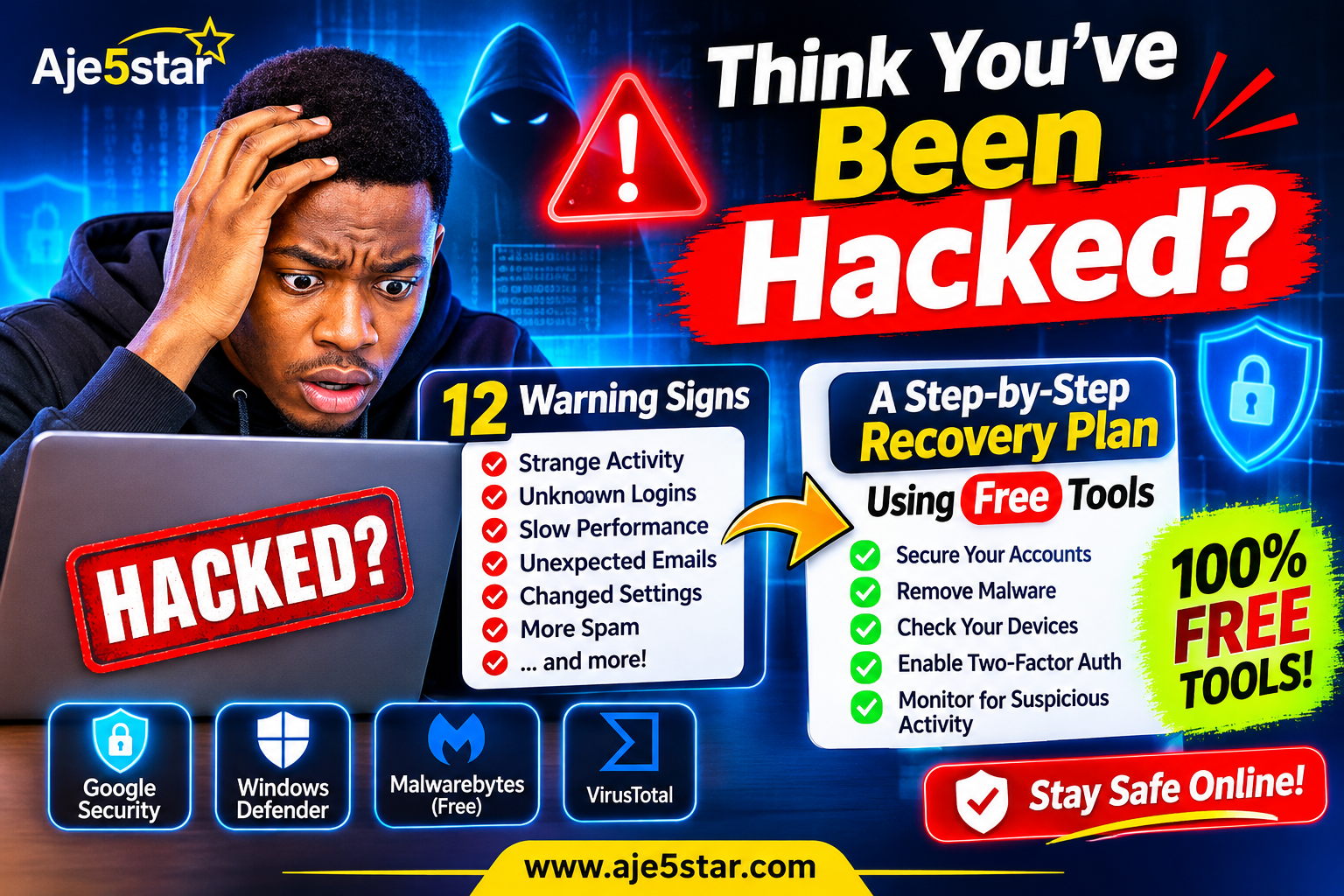
20. What to do if your WordPress site gets hacked
If you suspect that your website has been compromised, act carefully.
Step 1: Contact your hosting provider
Tell your hosting company that you suspect a security incident. Ask whether it can help identify the affected files, accounts, or server activity.
Step 2: Protect your accounts
From a clean device, change affected passwords, including your hosting, WordPress, database, and associated email credentials where necessary.
Revoke suspicious sessions and review administrator accounts.
Step 3: Preserve evidence
Keep available logs, security alerts, and copies of suspicious files. Do not destroy evidence before understanding what happened.
Step 4: Identify the source
Investigate outdated software, vulnerable plugins, stolen credentials, malicious uploads, and suspicious configuration changes.
Step 5: Clean the website
Use a qualified security professional if necessary. Remove malicious files and unauthorized changes, and update affected software.
Simply restoring a backup without fixing the original weakness may allow the attacker to compromise the website again.
Step 6: Restore and monitor
Restore from a verified clean backup if appropriate. Test website functions and continue monitoring for suspicious activity.
If customer information may have been exposed, follow the applicable privacy and breach-reporting requirements for your location and business.
Frequently asked questions
Can WordPress websites be hacked?
Yes. WordPress websites can be compromised through weak passwords, vulnerable software, stolen credentials, insecure hosting, and other weaknesses. Proper maintenance can reduce risk but cannot guarantee complete protection.
Is WordPress safe to use in 2026?
WordPress includes security features and receives ongoing maintenance. However, website security also depends on the hosting environment, plugins, themes, account practices, and website configuration.
Do I need a WordPress security plugin?
A reputable security plugin can provide useful features such as malware scanning, login protection, and activity monitoring. It should be part of a broader security plan, not your only protection.
How often should I back up my WordPress website?
Choose a schedule based on how frequently your website changes. Active websites and online stores generally need more frequent backups than small websites that rarely publish new content.
Is HTTPS enough to protect my website?
No. HTTPS protects information transmitted between a browser and your website, but it does not prevent every type of website attack.
Should I change my WordPress login URL?
Changing the login URL may reduce some automated login traffic, but it is not a substitute for strong passwords, two-factor authentication, updates, and monitoring.
Can I secure WordPress without paying?
Yes. Many important security practices are free, including updating WordPress, using strong passwords, limiting user permissions, removing unused software, and maintaining backups. Some advanced security services and features require payment.
Conclusion: Make website security part of your routine
Protecting your WordPress website is not something you should do only after an attack.
Keep your software updated, protect administrator accounts, use trusted plugins, maintain independent backups, and monitor suspicious activity.
Most importantly, prepare a recovery plan before something goes wrong.
A secure website helps protect your content, your visitors, your business, and the time you have invested in building your online presence.
For more WordPress tutorials, free online tools, AI resources, and beginner-friendly technology guides, visit Aje5star.com.
Build smarter. Stay protected. Grow with confidence.