

It is 9:00 a.m. Your inbox is full, a report is due this afternoon, three social posts still need writing, and you have not decided what to do first.
Sound familiar? Most of us lose hours every week to work that feels necessary but not meaningful: drafting emails, hunting for information, formatting documents, writing meeting notes, and moving data from one app to another.
This is exactly where AI earns its place. The right assistant can give you a first draft in seconds, summarize a 40-page document, turn a rambling meeting into a clean action list, or connect two apps so a task happens without you.
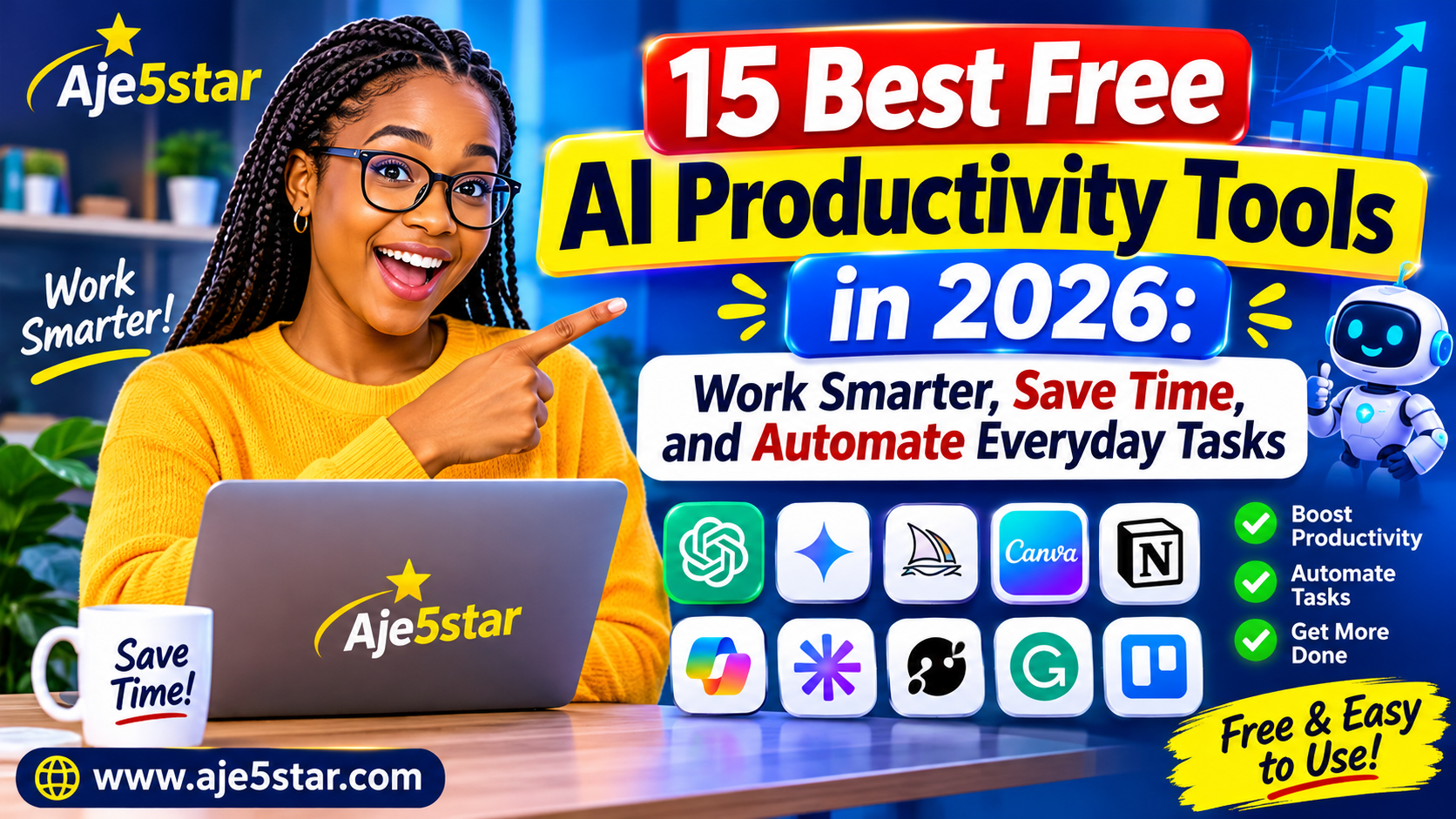
The best part: you do not need a big budget. This guide covers 15 free AI productivity tools for 2026. For each one you will see what it is genuinely best at, a prompt or workflow to try today, and what to watch for on the free plan.
In a Hurry? Start Here
Pick one assistant (ChatGPT, Gemini, or Claude), one organizer (Notion), and one tool for your biggest time-waster (research, design, meetings, or automation). Use them on a real task today. Three tools used well beat fifteen tools installed and forgotten.
“Free” has limits. Many AI tools cap daily use, credits, storage, or advanced features, and plans change often. Check each tool’s current plan before depending on it for important work.
Table of Contents
- What Are AI Productivity Tools?
- Find Your Tool in 30 Seconds
- The 15 Best Free AI Productivity Tools
- How to Choose the Right Tool
- Three Ready-Made AI Workflows
- 5 Copy-and-Paste Prompts
- Use AI Safely and Smartly
- Frequently Asked Questions
1. What Are AI Productivity Tools?
AI productivity tools are apps that use artificial intelligence to help you finish tasks faster. Instead of doing every step by hand, you describe what you need, share the material, and the tool helps you draft, summarize, organize, design, or automate.
- A student gets a hard topic explained in simple English.
- A business owner drafts customer emails in minutes.
- A blogger turns a rough idea into a solid outline.
- A freelancer writes a proposal from a short brief.
- A team automates repetitive admin work.
One rule matters more than any other: AI is your assistant, not your replacement. It gives you speed. You supply judgment, accuracy, and the final decision.
2. Find Your Tool in 30 Seconds
| Your Goal | Start With |
|---|---|
| Write, brainstorm, and solve everyday problems | ChatGPT |
| Research and plan, especially inside Google’s ecosystem | Gemini |
| Review and improve long or detailed writing | Claude |
| Study from your own notes and documents | NotebookLM |
| Discover sources on a new topic | Perplexity |
| Catch grammar and polish your tone | Grammarly |
| Reword and simplify a draft | QuillBot |
| Design graphics without design skills | Canva |
| Build a presentation from an idea | Gamma |
| Organize notes, tasks, and plans | Notion |
| Manage team projects and deadlines | ClickUp |
| Connect apps and automate simple jobs | Zapier or Make |
| Turn meetings into notes and action items | Otter.ai or Fathom |
3. The 15 Best Free AI Productivity Tools in 2026
Everyday AI Assistants
1. ChatGPT: The All-Rounder
Best for: Writing, brainstorming, learning, planning, and problem-solving. chatgpt.com
ChatGPT is a general-purpose assistant you talk to in plain language. If you could ask a smart helper to do it, you can usually try asking ChatGPT first.
Use it to:
- Draft professional emails and messages
- Create blog outlines and content ideas
- Explain hard topics in simple English
- Build study plans and daily schedules
- Brainstorm business and marketing ideas
- Help with coding and troubleshooting
Try this: “Act as my productivity assistant. Build a realistic daily schedule for a small-business owner who must handle emails, social media, customers, and business growth. Include breaks and put the most important tasks first.”
Free plan: A free option is available, with usage limits on models and some features.
Watch out: It can sound confident when it is wrong. Check facts before you rely on them.
2. Google Gemini: The Google-Friendly Helper
Best for: Research, writing, brainstorming, and explanations, especially if you live in Google’s apps. gemini.google.com
Gemini helps you understand information, generate ideas, draft content, and plan projects. It is a natural fit if Google services already run your day.
Try this: “Plan one week of social media content for a small clothing business. Give me seven post ideas, captions, and a simple publishing schedule.”
Free plan: Free access is available. Features and limits vary by account, feature, and location.
Watch out: Availability differs by region, so some features you read about may not appear for you yet.
3. Claude: The Careful Writer and Reviewer
Best for: Writing, editing, long-document analysis, and structured thinking. claude.ai
Claude, made by Anthropic, is useful when clarity, structure, and tone matter. Give it your instructions and source material, then ask it to summarize, explain, review, or reorganize.
Try this: “Review this business proposal. Point out unclear sections, explain what is missing, and suggest improvements. Keep the language professional and easy to understand.”
Free plan: A free option is available with usage limits, and features can change.
Watch out: Like every AI assistant, it can make mistakes. Treat its output as a draft, and compare a few assistants on your own tasks to see which suits you.
Research and Learning
4. NotebookLM: Turn Your Notes Into Answers
Best for: Studying and researching from your own sources. notebooklm.google.com
Instead of answering only from general knowledge, NotebookLM works from the sources you add, such as supported documents and web material. You ask questions, and it helps you explore what those sources say.
Use it to: Summarize research, ask questions about your uploads, prepare study notes, and pull key ideas from long reading.
Example: A student adds lecture notes and a textbook chapter, then asks for a simple explanation of the hardest section.
Free plan: Free access with usage limits. Check Google’s current plan for source and generation limits.
Watch out: Always check important answers against the original source.
5. Perplexity: Your Research Starting Point
Best for: Exploring a topic and discovering sources. perplexity.ai
Perplexity is an AI answer and research tool that points you to online sources. It is handy for the early stage of an article, presentation, or business decision, when you do not yet know what you do not know.
Try this: “Research the challenges small businesses face when marketing on social media. Organize the findings into five themes and give me sources I can check.”
Free plan: A free option is available. Some advanced research features may need a paid plan.
Watch out: A cited answer is not automatically a correct one. Open the sources that matter. For more search skills, see our guide to Google search tricks.
Writing and Editing
6. Grammarly: The Final Polish
Best for: Grammar, spelling, clarity, and professional tone. grammarly.com
Grammarly flags writing problems and suggests fixes, so your emails and documents read cleanly. Run an important message through it before you hit send.
Free plan: A free option covers core checks. More advanced writing and AI features are on paid plans.
Watch out: Suggestions are not always right for your voice. Accept what helps and ignore what does not.
7. QuillBot: Reword, Simplify, Summarize
Best for: Paraphrasing, summarizing, and improving sentence flow. quillbot.com
QuillBot helps you rework clumsy sentences and condense long passages. It is useful when you have a rough draft and want smoother wording.
Free plan: Some tools are free, with usage and feature limits.
Watch out: Rewording is not the same as giving credit. Cite original sources whenever you use other people’s research or ideas.
Design and Presentations
8. Canva: Design Without a Design Degree
Best for: Social posts, thumbnails, flyers, presentations, and marketing materials. canva.com
Canva lets beginners build good-looking visuals from templates, and its AI-assisted features can speed up parts of the process, depending on your plan.
A simple workflow:
- Choose a template, such as an Instagram post.
- Add your message.
- Explore the layout suggestions available to you.
- Add your logo and brand colors.
- Proofread, then download.
Free plan: A free plan is available. Some premium templates, assets, and AI features need a paid plan or have limits.
9. Gamma: From Idea to Presentation Fast
Best for: Presentations and visual documents. gamma.app
Describe a topic, and Gamma helps turn it into a structured, visual presentation you can polish and share. It is a quick way to get past the blank first slide.
Try this: “Create a beginner-friendly presentation on how a small business can use social media marketing. Include an introduction, five practical strategies with examples, and a conclusion.”
Free plan: Free access has been offered with usage or credit limits. Check the current plan before starting a big project.
Organization and Projects
10. Notion: Your Second Brain
Best for: Notes, task lists, project planning, and knowledge organization. notion.com
Notion combines documents, databases, and project boards in one workspace, with AI features available depending on your plan.
Example: A blogger builds a content database with columns for title, focus keyword, category, status, and publish date.
Free plan: A free individual plan is available. AI access and advanced features may be limited or paid.
Watch out: It is easy to spend hours decorating a dashboard. Keep it simple enough that you will actually use it.
11. ClickUp: Turn Big Projects Into Small Tasks
Best for: Task tracking, deadlines, and teamwork. clickup.com
ClickUp helps individuals and teams break large projects into assigned, trackable tasks and see progress at a glance.
Example: A small team splits a product launch into research, design, writing, review, and publishing.
Free plan: A free plan is available with feature and usage limits. Some AI capabilities are paid.
Automation
12. Zapier: Let Your Apps Talk to Each Other
Best for: Simple, no-code automations between apps. zapier.com
Zapier connects supported apps so an action in one triggers an action in another.
Example: A customer fills in your contact form, and an automation sends you a notification and adds the details to a spreadsheet.
Free plan: A free plan is available, with limits on tasks, apps, and features. Advanced automation and AI features may be paid.
13. Make: Build Visual Workflows
Best for: More flexible, multi-step automations. make.com
Make lets you build workflows on a visual canvas, so you can see exactly how information moves between apps.
Example: A new customer enquiry arrives. The workflow records it, alerts you, and creates a follow-up task.
Free plan: A free plan with usage limits is available. Check current allowances before building something you rely on.
Watch out (both Zapier and Make): Test automations with sample data first. A mistake in an automated workflow repeats itself quickly.
Meetings
14. Otter.ai: Meetings You Can Search
Best for: Transcription and meeting notes. otter.ai
Otter transcribes supported meetings and recordings so you can search, review, and pull out follow-up items instead of relying on messy handwritten notes.
Example: After a team call, review the transcript and list agreed tasks, owners, and deadlines.
Free plan: A free option with limits on transcription and other features. Check current allowances and supported meeting tools.
Privacy: Get permission before recording any meeting, and follow your organization’s policies and local laws.
15. Fathom: Summaries Without the Note-Taking
Best for: Reviewing online meetings and capturing action items. fathom.video
Fathom captures supported online meetings and produces summaries, key points, and follow-ups that you can share with colleagues.
Example: A freelancer reviews the summary of a client call and turns the agreed work into a project checklist.
Free plan: Free access is available, with features depending on the current plan and your meeting setup.
Privacy: Tell participants and get any required consent before recording or processing a meeting.
4. How to Choose the Right Tool
Do not collect apps. Ask these five questions instead:
- What task eats most of my time? Writing, research, design, meetings, or repetitive admin? Choose the tool that targets that.
- Is the free plan actually useful? Check which features are free, what the daily or monthly limits are, whether a credit card is required, and whether exports are restricted.
- Is it easy to learn? A complicated tool can cost more time than it saves.
- Does it fit the apps I already use? Integrations with Google Drive, Microsoft Office, or WordPress prevent extra copying and pasting.
- Is my information safe? Read the privacy and data-use details. Do not upload passwords, financial records, or confidential data unless you have confirmed the service is suitable.
Want a broader toolbox beyond AI? See our guide to the 25 best free productivity tools.
5. Three Ready-Made AI Workflows
The Blogger or Content Creator
- Plan your content calendar in Notion.
- Brainstorm topics and outlines with ChatGPT or Gemini.
- Research with NotebookLM or Perplexity, and verify every claim and statistic yourself.
- Polish your draft with Grammarly.
- Design the featured image in Canva.
- Publish with a checklist: research, keyword, outline, draft, fact-check, edit, image, SEO metadata, and a final page check.
More ideas for creators are in our list of free AI tools for content creators.
The Student
- Collect course notes and readings in NotebookLM.
- Ask for simple explanations of tough chapters.
- Quiz yourself with an assistant like ChatGPT or Gemini.
- Write in your own words, then check clarity with Grammarly.
Follow your school’s rules on AI use, and make sure the learning is yours.
The Freelancer or Small-Business Owner
- Track clients and tasks in Notion or ClickUp.
- Draft proposals and emails with an AI assistant, then edit them in your voice.
- Create marketing visuals in Canva and pitch decks in Gamma.
- Summarize client calls with Fathom or Otter.ai (with consent).
- Automate one repetitive task with Zapier or Make.
6. Five Copy-and-Paste Prompts
Clear instructions get better results. Replace the text in [brackets] with your own details. For a deeper guide, read how to write better AI prompts.
Daily Planner
“Act as my personal productivity assistant. Help me organize today’s work. Split my tasks into high, medium, and low priority, estimate realistic time blocks, include breaks, and leave space for unexpected work. My tasks: [list tasks].”
Small-Business Marketing
“Act as a marketing assistant for a small business that [describe business]. Create a seven-day content plan with post topics, engaging captions, calls to action, and simple image ideas. Keep it practical and beginner-friendly.”
Study Helper
“Explain [topic] in simple English for a beginner. Use everyday examples, explain difficult terms, and finish with five questions to test my understanding.”
Professional Email
“Write a polite, professional email about [subject]. Keep it clear, friendly, and concise. Include a subject line and a clear next step.”
Blog Research Assistant
“Help me research [topic] for a beginner-friendly article. Identify the reader’s main questions, suggest useful sections, list claims that need verification, and recommend reliable sources to investigate. Do not invent statistics or references.”
7. Use AI Safely and Smartly
- Verify important facts. Check dates, statistics, technical steps, and anything legal, medical, or financial.
- Protect private information. Do not paste passwords, customer records, or confidential documents into a service without checking its data policy. Our guide on protecting your personal information online explains how.
- Review everything. Fix errors and make the final result reflect your own judgment and voice.
- Respect copyright. Do not present other people’s work as your own.
- Test automations. Run them on sample data before they send messages or change records.
- Get consent to record. Always ask before recording meetings or conversations.
- Watch your spending. Keep an eye on free credits, usage limits, and automatic renewals.
The winning formula is simple: AI brings speed, and you bring experience, creativity, and careful review.
8. Frequently Asked Questions
What is the best free AI productivity tool in 2026?
There is no single winner. ChatGPT, Gemini, and Claude are strong general assistants. NotebookLM is great for your own source material, Canva for design, and Notion for organization. The best choice depends on the task you want to improve.
Can I use AI productivity tools without paying?
Yes. Many offer free plans or free access to selected features, but there are often limits on usage, credits, storage, or advanced tools.
Which AI tools are best for students?
ChatGPT, Gemini, NotebookLM, Grammarly, and Perplexity can help explain subjects, organize research, improve writing, and prepare study notes. Always follow your school’s academic rules and do your own learning.
Which AI tools suit small businesses?
ChatGPT or Gemini for brainstorming and writing, Canva for marketing graphics, Notion or ClickUp for organization, and Zapier or Make for supported automations.
Can AI help me make money online?
AI can support services such as writing, design, marketing, research, and administration. But owning an AI account does not guarantee income. You still need skills, customers, and quality work. See our guide to 15 beginner-friendly ways to make money online.
Will AI replace human workers?
AI can automate or assist with some tasks, but human judgment, communication, responsibility, and specialist knowledge still matter. Many people use AI to strengthen their work, not to replace it.
Are AI answers always correct?
No. AI can produce wrong, incomplete, or outdated information. Verify important claims with trustworthy sources.
How many AI tools should I use?
Start with two or three that solve real problems, and add another only when it gives a clear benefit.
Are free AI tools safe?
Many are reputable, but you should still review privacy policies, account security, data settings, and what you upload. Avoid sharing sensitive data unnecessarily.
What is the best way to learn these tools?
Pick one tool, choose a real task to improve, and practice on a real project. Learn its limits and build a repeatable routine before adding another tool.
Your Next 15 Minutes
Do not close this tab and forget it. Do this instead:
- Pick one task you do every week that is slow or boring.
- Choose one tool from this list that fits it.
- Copy one prompt from above and try it on real work.
- Edit the result, and note how much time you saved.
That small experiment is how a productivity system starts. The future of work is not about using more AI. It is about using the right tools, in the right places, with good judgment.
Want more free AI guides, tools, and practical tutorials? Explore 100+ best free AI tools in 2026 and more at Aje5star.com.