

Cybersecurity is no longer just for large companies and IT experts. Whether you use a smartphone, manage a website, run a small business, or study online, learning how to protect your digital information is essential.
Every day, people face online threats such as phishing emails, fake websites, malware, stolen passwords, identity theft, and data breaches. A single mistake, such as clicking a suspicious link or reusing a password, can expose important personal information.
The good news is that you do not need an expensive security system to start protecting yourself. Many useful cybersecurity tools are free, open source, or include free versions.
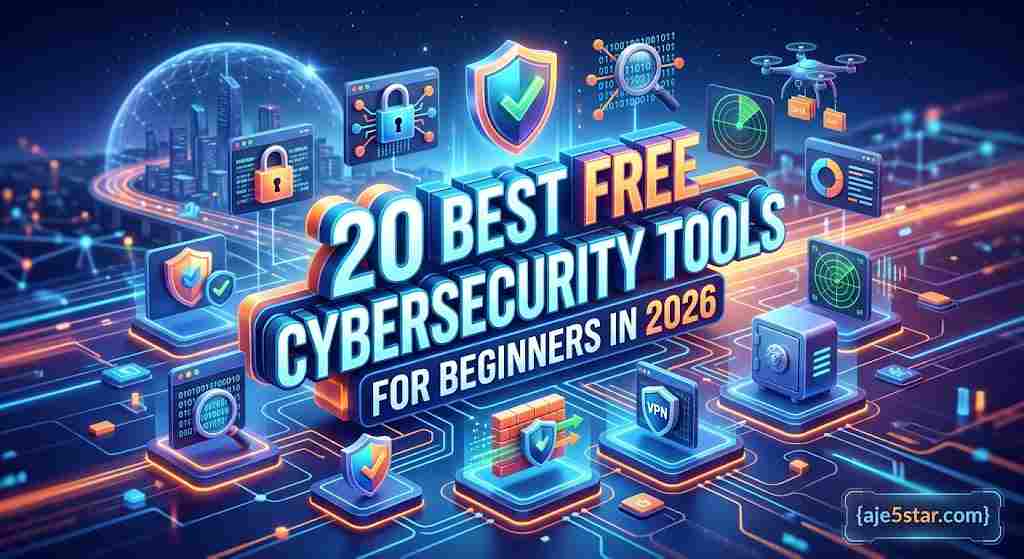
In this guide, you will discover 20 free cybersecurity tools for beginners in 2026. You will learn what each tool does, who should use it, and how it can help protect your digital life.
Important: Some tools in this guide are designed for everyday users, while others are technical tools for students, website owners, and IT professionals. Only scan or test devices, websites, and networks that you own or have clear permission to assess.
The Short Version
- Most people only need a password manager, two-factor authentication, built-in device protection and backups.
- Tools 1 to 10 are for everyday users. Tools 11 to 20 are technical and best used in a practice lab.
- Download only from official websites.
- Scan or test only what you own or have permission to assess.
Table of Contents
- What Are Cybersecurity Tools?
- Why Should Beginners Use Cybersecurity Tools?
- 20 Best Free Cybersecurity Tools for Beginners
- Best Free Cybersecurity Tools for Different Needs
- How to Build a Basic Cybersecurity Setup
- Cybersecurity Mistakes Beginners Should Avoid
- Frequently Asked Questions
- Final Thoughts
1. What Are Cybersecurity Tools?
Cybersecurity tools are software programs and online services that help protect computers, smartphones, websites, networks, and personal information from digital threats.
They can help you:
- Detect viruses and malicious software.
- Create and manage strong passwords.
- Protect accounts with two-factor authentication.
- Identify suspicious network activity.
- Check whether an email address appears in known data breaches.
- Find security weaknesses in websites you own.
- Encrypt sensitive files.
- Monitor computers and networks for suspicious activity.
Different tools perform different jobs. A password manager does not replace antivirus software, and an antivirus program does not automatically make every online account secure.
A good security setup combines several layers of protection.
2. Why Should Beginners Use Cybersecurity Tools?
Using cybersecurity tools can help you develop safer digital habits and reduce the risk of common online attacks.
Protect your personal information
Your email address, passwords, photographs, financial information, and private documents can be valuable to criminals. Security tools help reduce the chances of unauthorized access.
Protect your computer and smartphone
Malware can damage files, steal information, or interfere with normal device operation. Security software helps detect and remove certain threats.
Secure your online accounts
A password manager helps you create unique passwords. An authenticator app adds another layer of protection when signing in.
Learn practical technology skills
Tools such as Wireshark, Nmap, and OWASP ZAP can help students understand how networks and websites work from a security perspective.
Protect a small business website
Website owners can use security scanners and monitoring tools to identify potential weaknesses before they become serious problems.
3. 20 Best Free Cybersecurity Tools for Beginners
Here are 20 useful tools covering passwords, antivirus protection, privacy, network monitoring, website testing, and more.
Everyday Protection Tools (1 to 10)
1. Bitwarden – Free Password Manager
Best for: Managing passwords securely.
Bitwarden is a password manager that helps you store and organize login information in an encrypted vault.
Instead of remembering dozens of passwords, you remember one strong master password and let the password manager handle the rest.
Main features:
- Store passwords in a digital vault.
- Generate strong, unique passwords.
- Use browser extensions and mobile applications.
- Access your saved credentials across supported devices.
- Reduce the temptation to reuse passwords.
Bitwarden offers a free personal plan, although some advanced features require a paid subscription. Check its current plan details before choosing it.
Why beginners should use it: Reusing passwords is risky. A password manager makes it easier to use a different password for every important account.
2. KeePassXC – Offline Password Manager
Best for: People who prefer local password storage.
KeePassXC is a free, open-source password manager. It stores your passwords in an encrypted database that you control.
Unlike cloud-first password managers, KeePassXC is designed around local storage. You can decide where to keep your database and how to back it up.
Main features:
- Encrypted password database.
- Password generator.
- Browser integration.
- Offline access to saved credentials.
- Open-source software.
Why beginners should use it: It is a useful choice if you want more control over where your password database is stored.
Remember to protect the database and keep a secure backup. Losing both your database and its master password can mean losing access to your saved credentials.
3. Aegis Authenticator – Two-Factor Authentication
Best for: Protecting Android accounts with extra login security.
Aegis is an open-source authenticator application for Android. It generates time-based one-time passwords that you can use when a website or application asks for an authentication code.
Main features:
- Generate two-factor authentication codes.
- Encrypt the authenticator vault.
- Organize saved accounts.
- Create encrypted backups.
- Import supported authenticator entries.
Why beginners should use it: Even if someone obtains your password, a second authentication step can make account access more difficult.
Store recovery codes safely and make sure you understand how to restore your authenticator if your phone is lost.
4. Microsoft Defender – Built-In Windows Security
Best for: Everyday Windows protection.
Microsoft Defender Antivirus is built into supported Windows versions and provides protection against many common malware threats.
Main features:
- Real-time antivirus protection.
- Security scans.
- Threat detection and removal.
- Windows security integration.
- Protection against certain suspicious files and applications.
Why beginners should use it: Many Windows users already have a security solution available without installing another antivirus product.
Keep Windows updated and check that real-time protection is enabled.
5. Malwarebytes – Malware Removal and Browser Protection
Best for: Checking devices for unwanted software.
Malwarebytes offers free security tools, including malware removal and browser protection products. Its free offerings vary by product and platform.
Main features:
- Scan for certain malware threats.
- Remove detected unwanted software.
- Browser Guard extension for supported browsers.
- Tools for checking suspicious links and digital exposure.
Why beginners should use it: It can be useful when you suspect that a computer or browser has unwanted software.
Do not assume that every free product includes continuous real-time protection. Check the current product description before installing it.
6. AdwCleaner – Remove Adware and Unwanted Programs
Best for: Cleaning unwanted advertising software from Windows.
AdwCleaner is a free Windows utility designed to find and remove certain adware, potentially unwanted programs, and browser-related nuisances.
Main features:
- Detect certain unwanted applications.
- Identify some browser hijackers.
- Remove supported adware.
- Help clean up unwanted browser components.
Why beginners should use it: If your browser suddenly displays unwanted advertisements or redirects, this tool may help identify the cause.
Download it from the official Malwarebytes website rather than an unfamiliar download portal.
7. Have I Been Pwned – Check for Data Breaches
Best for: Checking whether an email address appears in known data breaches.
Have I Been Pwned is a service that lets people check whether their email addresses appear in known data breaches included in its database.
Main features:
- Search an email address against known breach records.
- Review information about reported breaches.
- Learn whether exposed accounts may need attention.
- Use supported notification features.
Why beginners should use it: A data breach can expose information that criminals may later use in phishing attempts or account takeovers.
If your email appears in a breach, change the affected password, change any reused passwords, enable multi-factor authentication, and review account recovery settings.
A result showing no known breach does not prove that an account has never been compromised.
8. Google Security Checkup – Secure Your Google Account
Best for: Reviewing Google account security.
Google Security Checkup helps you review important security settings associated with your Google Account.
Main features:
- Review devices signed into your account.
- Check recent security activity.
- Review third-party application access.
- Check available sign-in and recovery options.
- Get recommendations for improving account security.
Why beginners should use it: Your Google Account may connect to email, photographs, documents, YouTube, and other services. Reviewing its security settings is a useful habit.
9. Quad9 – Safer DNS Resolution
Best for: Blocking access to many known malicious domains through DNS filtering.
Quad9 is a DNS service that uses threat intelligence to block queries to certain known malicious domains.
DNS is the system that helps translate website names into the network addresses computers use.
Main features:
- DNS-based blocking of many known malicious domains.
- Public DNS resolver options.
- Privacy-focused service operation.
- No need to install a traditional antivirus application.
Why beginners should use it: It adds another layer of protection against some known dangerous websites.
DNS filtering is not a complete security solution. It cannot identify every scam, malicious file, or phishing attempt.
10. uBlock Origin – Browser Content and Tracker Blocking
Best for: Reducing unwanted advertisements and certain tracking activity.
uBlock Origin is an open-source content blocker for supported browsers.
Main features:
- Block many advertisements.
- Filter certain tracking scripts.
- Use filter lists.
- Customize website filtering.
- Reduce some unwanted browser content.
Why beginners should use it: It can make browsing cleaner and reduce exposure to some unwanted advertising and tracking.
Use the official project page to find supported browser versions. Do not install similarly named extensions from unknown developers.
Network Security and Monitoring Tools (11 to 15)
The next tools are more technical. They are valuable for learners, IT students, administrators, and people responsible for their own networks.
11. Wireshark – Network Traffic Analyzer
Best for: Learning how network communication works.
Wireshark is a free, open-source network protocol analyzer. It captures and displays network packets so users can examine how devices communicate.
Main features:
- Capture network traffic.
- Inspect supported network protocols.
- Filter captured packets.
- Investigate network problems.
- Learn how network communication works.
Why beginners should use it: It is a powerful learning tool for understanding networking and troubleshooting.
Start by analyzing traffic on your own computer or a lab network. Captured traffic may contain sensitive information, so handle it carefully and never monitor networks without permission.
12. Nmap – Network Discovery and Security Auditing
Best for: Discovering devices and services on networks you manage.
Nmap, also known as Network Mapper, is a free, open-source tool for network discovery and security auditing.
Main features:
- Discover active devices.
- Identify available network services.
- Help administrators inventory systems.
- Support network troubleshooting.
- Provide command-line and graphical workflows.
Why beginners should use it: It helps you understand what devices and services are present on a network you own or administer.
Nmap is a technical tool. Learn its documentation and use it only on systems for which you have authorization.
13. OWASP ZAP – Website Security Testing
Best for: Learning how to assess websites you own or are authorized to test.
OWASP ZAP, short for Zed Attack Proxy, is a free, open-source web application security testing tool.
It helps developers and security learners examine web applications for potential security weaknesses.
Main features:
- Automated web application scanning.
- Manual testing support.
- Request and response inspection.
- Browser-based testing workflows.
- Add-ons for additional functionality.
Why beginners should use it: Website owners and developers can use it to learn about common web security issues.
Begin with the official Quick Start Guide and a deliberately vulnerable practice application. Do not scan websites belonging to other people or organizations without permission.
14. Greenbone Community Edition – Vulnerability Assessment
Best for: Learning vulnerability management.
Greenbone Community Edition provides open-source vulnerability management components.
A vulnerability scanner checks systems for known security weaknesses and configuration problems.
Main features:
- Vulnerability assessment.
- Security findings and reports.
- Support for managing scan results.
- Tools for learning vulnerability management.
Why beginners should use it: It introduces the process of finding and prioritizing security weaknesses in systems.
This is more advanced than ordinary antivirus software. It may require a suitable Linux environment, setup, and regular maintenance. Scan only authorized systems.
15. Wazuh – Security Monitoring Platform
Best for: Learning security monitoring and threat detection.
Wazuh is an open-source security platform that helps organizations monitor endpoints, collect security information, and investigate suspicious activity.
Main features:
- Security event monitoring.
- File integrity monitoring.
- Vulnerability detection capabilities.
- Security alerts and dashboards.
- Centralized endpoint monitoring.
Why beginners should use it: It can help learners understand how security teams monitor computers and investigate potential incidents.
Wazuh is a larger platform rather than a simple one-click application. It is best suited to learners who are comfortable following technical setup instructions.
Website, Software, and System Security Tools (16 to 20)
16. Trivy – Find Vulnerabilities in Software Projects
Best for: Developers and students learning secure software development.
Trivy is an open-source security scanner that can examine software projects and supported infrastructure components for issues such as known vulnerabilities and exposed secrets.
Main features:
- Scan container images.
- Check software dependencies.
- Examine supported configuration files.
- Detect certain exposed secrets.
- Integrate with development workflows.
Why beginners should use it: It helps developers understand why checking software components is an important part of building secure applications.
Use it on projects and files you own or are authorized to assess.
17. Microsoft Sysinternals Suite – Windows System Utilities
Best for: Understanding and troubleshooting Windows systems.
Microsoft Sysinternals is a collection of advanced Windows utilities used by IT professionals and administrators.
Some popular utilities include:
- Process Explorer: Examine running processes.
- Autoruns: Review programs configured to start automatically.
- Process Monitor: Monitor file system, registry, and process activity.
- TCPView: Review network connections.
Why beginners should use it: These tools help you learn what is happening inside Windows.
Some utilities provide detailed system information that can be confusing at first. Read the official documentation before changing system settings or stopping processes.
18. VeraCrypt – File and Disk Encryption
Best for: Protecting sensitive files and data.
VeraCrypt is free, open-source encryption software that can create encrypted containers and encrypt supported storage devices.
Main features:
- Create encrypted file containers.
- Protect sensitive documents.
- Encrypt supported partitions and storage devices.
- Use strong encryption options.
Why beginners should use it: Encryption can help protect private information if a storage device is lost or accessed by an unauthorized person.
Be careful when configuring encryption. Back up important files first, protect your passwords, and understand the recovery limitations before encrypting a drive.
19. OpenVPN Community Edition – Secure VPN Connectivity
Best for: Learning about encrypted VPN connections.
OpenVPN Community Edition is an open-source VPN solution used to create secure connections between supported devices and networks.
Main features:
- Encrypted VPN connections.
- Support for different operating systems.
- Flexible network configuration.
- Community documentation and resources.
Why beginners should use it: It can help you understand how VPN connections protect data while it travels between a device and a VPN endpoint.
OpenVPN software is not the same thing as a free commercial VPN subscription. You generally need access to a properly configured VPN server. A VPN also does not make you completely anonymous or protect you from every online threat.
20. Security Onion – Network Security Monitoring
Best for: Advanced students and security analysts.
Security Onion is an open-source platform for network security monitoring, threat hunting, and log management.
Main features:
- Network visibility.
- Security event investigation.
- Threat hunting workflows.
- Log and alert analysis.
- Security monitoring dashboards.
Why beginners should use it: It offers a learning environment for understanding how professional security monitoring teams investigate network activity.
Security Onion is not a simple beginner application. It needs appropriate hardware, configuration, and technical knowledge. Start with its official documentation and a dedicated lab environment.
4. Best Free Cybersecurity Tools for Different Needs
You do not need to install all 20 tools. Choose the ones that solve your actual security problems.
| Your need | Recommended tool |
|---|---|
| Store passwords | Bitwarden |
| Keep passwords locally | KeePassXC |
| Generate login codes | Aegis Authenticator |
| Protect a Windows computer | Microsoft Defender |
| Check for malware | Malwarebytes |
| Remove unwanted adware | AdwCleaner |
| Check email breach exposure | Have I Been Pwned |
| Review Google account security | Google Security Checkup |
| Block some malicious domains | Quad9 |
| Reduce browser ads and trackers | uBlock Origin |
| Understand network traffic | Wireshark |
| Discover devices on your network | Nmap |
| Test your own website | OWASP ZAP |
| Learn vulnerability management | Greenbone |
| Monitor endpoints | Wazuh |
| Scan software projects | Trivy |
| Investigate Windows activity | Sysinternals |
| Encrypt sensitive files | VeraCrypt |
| Learn VPN technology | OpenVPN |
| Study network security monitoring | Security Onion |
Not Sure Where to Start? Begin With These 5
| Step | Tool | What It Does for You |
|---|---|---|
| 1 | Bitwarden or KeePassXC | Gives every account its own strong password |
| 2 | An authenticator app (such as Aegis on Android) | Adds a second login step to important accounts |
| 3 | Microsoft Defender (Windows) | Provides built-in malware protection |
| 4 | Have I Been Pwned | Shows whether your email was in a known breach |
| 5 | Google Security Checkup | Reviews devices and apps connected to your Google Account |
5. How to Build a Basic Cybersecurity Setup
If you are new to cybersecurity, start with a few simple steps instead of installing many applications.
Step 1: Update your devices
Install operating system, browser, and application updates. Security updates often fix weaknesses that attackers could otherwise exploit.
Step 2: Use a password manager
Choose Bitwarden or KeePassXC. Create unique passwords for your important accounts, especially email, banking, and social media.
Step 3: Enable two-factor authentication
Use an authenticator application where supported. Save backup and recovery codes in a secure location.
Step 4: Keep antivirus protection active
For supported Windows computers, check that Microsoft Defender is enabled and receiving updates.
Step 5: Check your email exposure
Use Have I Been Pwned to check whether your email address appears in known breaches. If it does, review the affected accounts and change exposed or reused passwords.
Step 6: Review your account security
Use Google Security Checkup if you have a Google Account. Remove unfamiliar devices and review applications that have access to your account.
Step 7: Back up important files
Keep a backup of important documents, photographs, and business files. Use a backup location that is not permanently exposed to the same threats as your main computer.
Step 8: Learn one technical tool at a time
If you want to study cybersecurity professionally, begin with networking basics before moving to tools such as Wireshark, Nmap, and OWASP ZAP.
6. Cybersecurity Mistakes Beginners Should Avoid
Even good security software cannot protect you from every mistake. Avoid these common problems.
1. Using the same password everywhere
If one account is compromised, reused passwords can put other accounts at risk. Use a unique password for every important service.
2. Downloading software from unknown websites
Fake download pages can distribute malicious programs. Prefer official developer websites and trusted application stores.
3. Clicking suspicious links
Unexpected messages that demand urgent action may be phishing attempts. Verify the sender and visit websites by typing their known addresses yourself.
4. Ignoring software updates
Old applications can contain security weaknesses. Turn on automatic updates when practical.
5. Installing too many security applications
Multiple security products may conflict or slow down your computer. Choose a small number of reputable tools that cover different needs.
6. Assuming a VPN makes you invisible
A VPN can protect certain network connections, but it does not prevent phishing, malware, weak passwords, or tracking through every other method.
7. Scanning networks without permission
Network scanning and security testing should only be performed on systems you own or have explicit permission to assess.
8. Forgetting backups and recovery codes
Security measures can create problems if you lose access to your accounts or encrypted files. Keep recovery information and backups protected.
7. Frequently Asked Questions
What are the best free cybersecurity tools for beginners?
Good starting choices include Bitwarden for passwords, Microsoft Defender for Windows protection, an authenticator app for two-factor authentication, Google Security Checkup for account reviews, and Have I Been Pwned for checking known data breaches.
Can I learn cybersecurity for free?
Yes. You can start with free documentation, online learning resources, open-source tools, and practice environments. Learn computer networking, operating systems, basic programming, and security fundamentals before moving to advanced testing.
Is Microsoft Defender enough for basic protection?
For many supported Windows users, Microsoft Defender provides a useful built-in security baseline. However, no antivirus program can prevent every attack. Updates, strong passwords, backups, and safe browsing habits remain important.
Are open-source cybersecurity tools safe?
Open-source software can be a good choice, but open source does not automatically guarantee that a program is safe. Download software from official project websites, verify its authenticity when possible, and keep it updated.
Which cybersecurity tool should I learn first?
Start with a password manager and an authenticator app for personal security. If your goal is a cybersecurity career, learn networking fundamentals and then explore Wireshark and Nmap in an authorized practice environment.
Can cybersecurity tools protect my website?
Some tools can help. OWASP ZAP can test web applications, while other monitoring and vulnerability-management platforms can help identify security problems. Website protection also requires updates, secure hosting, backups, strong administrator passwords, and appropriate access controls.
Are free cybersecurity tools good enough for a small business?
They can provide a useful starting point for many small businesses. However, a business may also need managed monitoring, professional support, centralized administration, incident response, and compliance-related services as it grows.
Do I need to install all 20 tools?
No. Choose tools based on your needs. Most everyday users can begin with a password manager, two-factor authentication, built-in device security, account reviews, and reliable backups.
8. Final Thoughts
Cybersecurity does not have to be complicated or expensive. You can improve your digital safety by taking small steps and choosing reliable tools that solve specific problems.
Start with password protection, two-factor authentication, device updates, antivirus protection, and regular backups. If you want to develop technical skills, explore tools such as Wireshark, Nmap, OWASP ZAP, and Wazuh in a safe practice environment.
Remember that cybersecurity is not about installing as many applications as possible. It is about understanding risks, building good habits, and protecting the information that matters.
Keep learning with Aje5star. Explore more free technology guides, online tools, and beginner-friendly tutorials at https://aje5star.com/.
Learn • Create • Earn with Aje5star.