


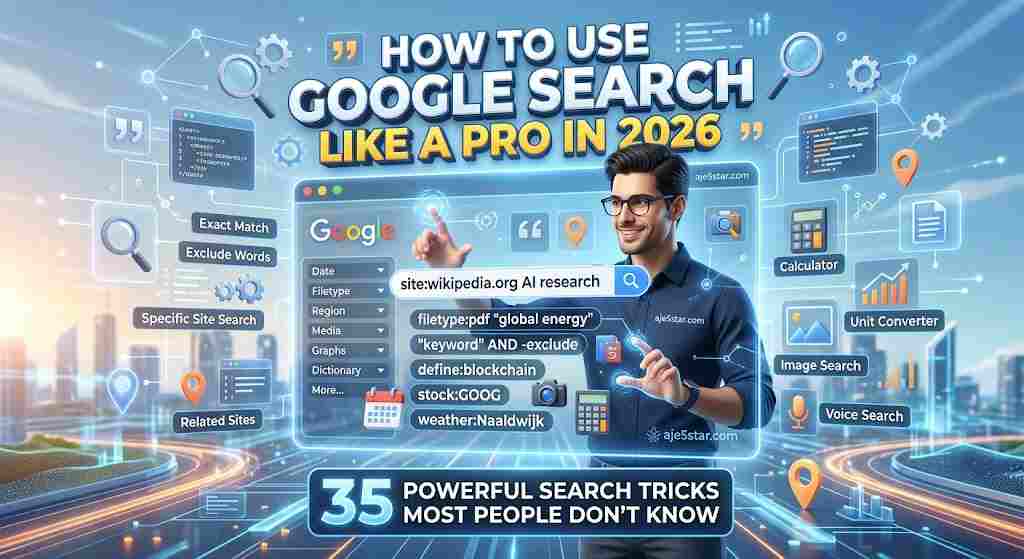
Millions of people use Google every day to search for information, discover websites, learn new skills, compare products, and solve everyday problems.
But most people only use basic searches. They type a few words into Google, open the first result, and hope to find what they need.
What if you could search more intelligently?
Google provides several search features and operators that can help you find specific information, discover documents, locate pages on particular websites, exclude unwanted results, and narrow down your searches.
For example, instead of searching for:
Free business marketing guide
You could search for:
"small business marketing" filetype:pdf
This helps narrow your search to PDF documents containing that exact phrase.
Learning how to search effectively can save time, improve research, help students complete assignments, and make everyday internet browsing easier.
In this comprehensive guide, you will discover 35 useful Google Search tricks that can help you become a smarter internet user in 2026. Whether you are a student, business owner, blogger, freelancer, researcher, or beginner, these techniques can improve the way you find information online.
The 5 Tricks to Learn First
"exact phrase"to find words together-wordto exclude unwanted resultssite:to search inside one websitefiletype:to find PDFs, slides and spreadsheetsORto search for either of two terms
Table of Contents
- What Is Google Search?
- Basic Google Search Tricks
- Advanced Google Search Operators
- How to Find PDFs and Documents
- Google Search Tricks for Students
- Google Search Tricks for Bloggers and SEO
- Google Search Tricks for Business Owners
- Quick Cheat Sheet
- Google Search Mistakes to Avoid
- Bonus: Useful Google Search Resources
- Frequently Asked Questions
1. What Is Google Search?
Google Search is an internet search engine that helps people discover information available across the web.
When you enter a search query, Google’s systems identify and rank relevant pages based on many signals.
Google Search can help you discover:
- Websites and blog articles.
- Images and videos.
- News and current information.
- Educational resources.
- Product information.
- Maps and local businesses.
- Research papers and documents.
- Answers to common questions.
However, getting useful results depends partly on how you phrase your searches. The more specific your search query, the easier it can be to find relevant information.
2. Basic Google Search Tricks Everyone Should Know
These techniques are easy to use and require no special software.
Trick 1: Search for an Exact Phrase
Use quotation marks around a phrase when you want to find pages containing those words together.
Example: "digital marketing for beginners"
This is useful when searching for a particular sentence, title, quote, or specific topic.
Trick 2: Exclude Unwanted Words
Use the minus sign to remove results containing a particular word.
Example: apple recipes -pie
This can help you find apple recipes without pie-related results.
Trick 3: Search for Multiple Possibilities
Use OR between terms when either option is acceptable.
Example: free website builder OR free website creator
This can help broaden your search to related wording.
Trick 4: Search for a Specific Number Range
Use two periods between numbers to search for a range.
Example: best laptops $500..$1000
This may help narrow product searches to a particular price range when Google recognizes the range.
Trick 5: Search Using a Question
Instead of typing random words, ask a clear question.
Example: How do I create a website without coding?
Question-based searches can help Google identify content that directly answers your problem.
Trick 6: Search for Definitions
Use the define: operator.
Example: define:entrepreneurship
This can help you find definitions of unfamiliar words.
Trick 7: Search for Related Topics
Try searching with synonyms and related phrases.
Example: small business growth strategies
You can also try: how to grow a small business online
Different wording can reveal useful pages that your original query might not show.
Trick 8: Search for Specific Websites
If you know the website where information might be located, include its name or domain.
Example: WordPress security guide site:wordpress.org
This narrows the results to pages from that domain.
3. Advanced Google Search Operators
Search operators are special commands that help narrow down search results. Here are some useful operators to learn.
Trick 9: The site: Operator
Use site: to search within a particular website.
Example: site:aje5star.com AI tools
This searches for indexed pages from Aje5star that relate to AI tools.
Why it is useful: Website owners can use it to inspect which pages Google has indexed, although it is not a complete or definitive indexing report.
Trick 10: The filetype: Operator
Use filetype: to search for particular document formats.
Example: cybersecurity guide filetype:pdf
Other useful examples:
filetype:docxfiletype:pptxfiletype:xlsxfiletype:pdf
Why it is useful: Students, researchers, and professionals can use this to discover downloadable resources.
Remember to respect copyright and document access restrictions.
Trick 11: The intitle: Operator
Use intitle: to find pages with a particular word in the title.
Example: intitle:website design beginner
This can help identify pages whose titles include your topic.
Trick 12: The allintitle: Operator
Use allintitle: when you want all the following words included in a page title.
Example: allintitle:free online learning websites
This can help you explore pages focused on a particular phrase.
Trick 13: The inurl: Operator
Use inurl: to search for a word in a webpage’s URL.
Example: inurl:blog digital marketing
This may help discover blog pages related to digital marketing.
Trick 14: The allinurl: Operator
Example: allinurl:free online courses
This searches for URLs containing all the specified terms.
Trick 15: Combine Search Operators
You can combine multiple operators to create more specific searches.
Example: site:example.com intitle:security guide
Another example: site:example.com filetype:pdf marketing
These combinations are useful when looking for particular types of pages on a website.
Important: Google may interpret some operators differently over time. Not every operator works equally well for every query.
4. How to Find PDFs, Documents, and Research Materials
Searching for documents can be useful when you need educational materials, reports, presentations, or research.
Trick 16: Find PDF Guides
Example: beginner programming guide filetype:pdf
Trick 17: Find PowerPoint Presentations
Example: digital marketing presentation filetype:pptx
Trick 18: Find Excel Spreadsheets
Example: business budget template filetype:xlsx
Trick 19: Find Word Documents
Example: resume template filetype:docx
Trick 20: Search for Research Papers
Example: artificial intelligence research papers
You can also explore Google Scholar: https://scholar.google.com/
Google Scholar is designed to help users discover scholarly literature, including academic articles, theses, books, and other research materials.
Always check the publisher’s access and copyright conditions before downloading or sharing documents.
5. Google Search Tricks for Students
Google can be a powerful learning resource when used responsibly.
Trick 21: Search for Educational Websites
Example: free mathematics lessons site:khanacademy.org
This can help you discover educational content from a particular learning platform.
Trick 22: Find Online Tutorials
Example: how to learn Python for beginners
Try adding words such as:
- Step by step.
- Beginner tutorial.
- Examples.
- Practice exercises.
- Free lessons.
Trick 23: Find Academic Information
Example: climate change scientific research
You can narrow your research using Google Scholar and reputable educational or government websites.
Trick 24: Compare Different Explanations
Search for the same topic using different wording. For example:
- What is artificial intelligence?
- How does artificial intelligence work?
- Examples of artificial intelligence.
- Advantages and disadvantages of artificial intelligence.
Comparing multiple explanations can help you understand difficult subjects more clearly.
Trick 25: Search for Specific Educational Formats
Example: computer networking tutorial filetype:pdf
This can help you discover educational documents, although not all results will be free or suitable for beginners.
6. Google Search Tricks for Bloggers and SEO Professionals
If you own a website, Google Search can help you research topics and understand how other websites organize information.
Trick 26: Find Competitor Content
Example: best free online tools
You can study the pages appearing in search results to understand:
- Topics competitors cover.
- Questions they answer.
- Their article structures.
- Their use of images.
- Their internal links.
- Information they may have missed.
Do not copy competitor content. Use your research to create something more useful and original.
Trick 27: Discover Content Ideas
Search for a broad subject and examine related questions.
Example: small business marketing
Then explore variations such as:
- Small business marketing strategies.
- Marketing ideas for local businesses.
- Social media marketing for beginners.
- Free marketing tools for entrepreneurs.
These variations can become separate articles when they serve genuinely different search intents.
Trick 28: Find Questions People Ask
Try searches such as: how to start a blog
Look for Google’s question-based result features, related searches, and other search suggestions.
You can turn relevant questions into helpful article sections or new content ideas.
Trick 29: Find Existing Aje5star Pages
Search: site:aje5star.com
Then add a topic: site:aje5star.com WordPress
This can help you discover existing pages and identify possible internal-link opportunities.
For a more complete SEO audit, use Google Search Console rather than relying only on a site search.
Trick 30: Find Content That May Need Updating
Search for your topic and compare the dates, information, and usefulness of competing articles.
For example: WordPress security guide 2026
Check whether your own content contains outdated instructions, old screenshots, broken links, or missing information.
Do not update an article simply to change its date. Improve the actual content.
7. Google Search Tricks for Business Owners
Trick 31: Research Your Industry
Example: small business trends
Look for information from reputable industry publications, government sources, and research organizations.
Trick 32: Research Customer Questions
Example: how to choose a website designer
This can help you discover questions potential customers may have before buying a service.
Trick 33: Find Local Business Information
Example: web design agencies in Singapore
Google can help you discover business websites, maps, contact information, and customer reviews.
Verify important business information directly before making decisions.
Trick 34: Research Products Before Buying
Example: laptop comparison battery life performance
Compare independent reviews, technical specifications, warranties, and prices.
Do not depend on one search result when making an important purchase.
Trick 35: Check Different Sources
When researching important information, search for the same subject across several reliable sources.
Look for:
- Official documentation.
- Government websites.
- Universities.
- Established news organizations.
- Original research.
- Recognized industry organizations.
This helps reduce the risk of relying on misleading or outdated information.
Quick Cheat Sheet: Google Search Operators
Save this table for quick reference.
| Operator | What It Does | Example |
|---|---|---|
"quotes" |
Finds an exact phrase | "digital marketing for beginners" |
-word |
Excludes a word | apple recipes -pie |
OR |
Matches either term | website builder OR website creator |
.. |
Searches a number range | laptops $500..$1000 |
define: |
Shows a definition | define:entrepreneurship |
site: |
Searches one website | site:aje5star.com AI tools |
filetype: |
Finds a document format | cybersecurity guide filetype:pdf |
intitle: |
Word in the page title | intitle:website design beginner |
allintitle: |
All words in the title | allintitle:free online learning websites |
inurl: |
Word in the URL | inurl:blog digital marketing |
allinurl: |
All words in the URL | allinurl:free online courses |
8. Google Search Mistakes to Avoid
Even experienced internet users sometimes make mistakes when searching.
Mistake 1: Using Extremely Broad Keywords
Searching for technology may produce millions of unrelated results.
Try a more specific query such as: best free technology tools for students
Mistake 2: Trusting the First Result Automatically
The first result is not automatically the best answer for every question.
Compare the information and check the source.
Mistake 3: Ignoring Publication Dates
Some topics change quickly.
For software tutorials, security advice, financial information, and product recommendations, check whether the information is still current.
Mistake 4: Believing Every Website
Some websites publish misleading information, fake reviews, or outdated advice.
Check the author’s expertise and compare claims with reliable sources.
Mistake 5: Copying Information Without Verification
Search results are useful starting points, not a substitute for understanding and checking information.
When writing articles, use trustworthy sources and add your own research, experience, explanations, and examples.
9. Bonus: Useful Google Search Resources
Here are additional Google services worth exploring.
Google Scholar: https://scholar.google.com/
Discover scholarly literature and academic research.
Google Trends: https://trends.google.com/
Explore search-interest patterns and compare topics over time.
Google Search Console: https://search.google.com/search-console/
Monitor your website’s search performance, indexing information, and technical issues.
Google Images: https://images.google.com/
Discover images and visual references. Always check image usage rights before reusing content.
Google Books: https://books.google.com/
Discover books and book-related information.
Google Alerts: https://www.google.com/alerts
Create alerts for topics and keywords you want to monitor.
10. Frequently Asked Questions
What are the best Google Search tricks?
Some of the most useful techniques include quotation marks for exact phrases, the minus sign to exclude terms, site: to search specific domains, and filetype: to locate particular document formats.
What does site: mean in Google Search?
The site: operator limits results to a particular website or domain.
For example, site:aje5star.com SEO searches for indexed Aje5star pages related to SEO.
How do I search for PDF files on Google?
Add filetype:pdf to your query.
For example: business plan template filetype:pdf.
How can I find a specific phrase on Google?
Place quotation marks around the phrase.
For example: "website development for beginners".
Can Google Search help with SEO?
Yes. It can help you research topics, inspect indexed pages, discover competing content, and explore questions related to your niche. Use Google Search Console and other SEO tools for deeper analysis.
Is Google Search free?
Yes. Basic Google Search is free to use.
Can I find old information using Google?
You can explore older material through date-related search features, archived websites, and historical documents. Availability depends on the content and source.
Are Google Search operators always accurate?
No. Operators can have limitations, and Google may change how it processes certain queries. Treat results as useful discovery tools rather than complete databases.
Conclusion: Become a Smarter Internet User
Google Search is more powerful when you understand how to use it.
By learning search operators, narrowing your queries, checking reliable sources, and exploring educational resources, you can find information more efficiently.
These 35 techniques can help students research assignments, bloggers discover content opportunities, business owners understand their markets, and everyday users solve problems faster.
You do not need advanced technical knowledge to use these features. Start with a few simple tricks and practise them whenever you search online.
Want more practical technology guides, free online tools, and beginner-friendly tutorials? Visit Aje5star.com and discover more ways to learn, work, and create online.