
The internet makes everyday life easier. You can shop, communicate, study, work, pay bills, and manage your business online.
However, sharing information online can also create risks. Cybercriminals may attempt to steal passwords, access accounts, collect personal information, or trick people into sending money.
Your personal information is valuable. Details such as your email address, phone number, home address, banking information, and passwords should be protected.
The good news is that you do not need to be a cybersecurity expert to improve your online safety.
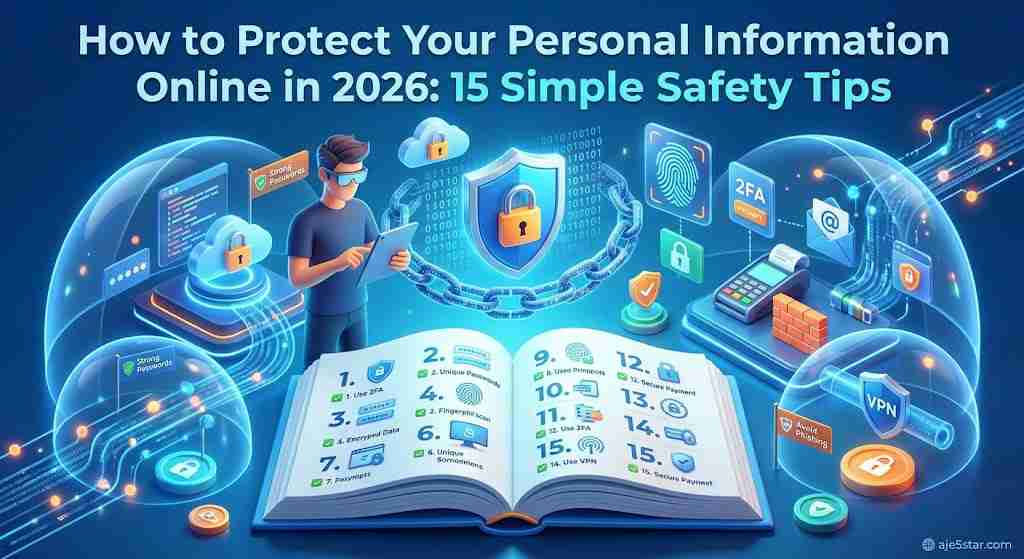
In this beginner-friendly guide, you will learn 15 practical ways to protect your personal information online in 2026.
The 4 Habits That Matter Most
- Use a strong, unique password for every important account.
- Turn on two-factor authentication wherever it is offered.
- Pause before clicking links in unexpected messages.
- Keep your devices and apps updated.
Table of Contents
- Use Strong and Unique Passwords
- Enable Two-Factor Authentication
- Be Careful With Suspicious Links
- Avoid Sharing Too Much Personal Information
- Use Secure Websites
- Keep Your Phone and Computer Updated
- Be Careful When Using Public Wi-Fi
- Download Apps From Trusted Sources
- Review App Permissions
- Watch Out for Phishing Emails
- Back Up Important Files
- Protect Your Social Media Accounts
- Never Share Verification Codes
- Use a Secure Password Manager
- Monitor Your Accounts Regularly
- What to Do If Your Information Is Stolen
- Frequently Asked Questions
1. Use Strong and Unique Passwords
A password is often the first layer of protection for your online accounts.
Avoid passwords that are easy to guess, such as:
- 123456
- password123
- Your birthday
- Your first name
- Your phone number
Instead, use long, unique passwords for different accounts.
A password manager can help you create and securely store passwords.
Important: Never reuse the same password for your email, banking, social media, and other important accounts.
2. Enable Two-Factor Authentication
Two-factor authentication, also called 2FA, adds another verification step when you sign in.
Depending on the service, you may need:
- A verification code.
- An authentication app.
- A security key.
- A passkey or device approval.
Even if someone discovers your password, additional verification can make unauthorized access more difficult.
Enable this feature on your email, financial, and social media accounts whenever available.
3. Be Careful With Suspicious Links
Online scammers often send messages containing links that imitate legitimate websites.
These messages may claim that:
- Your account will be suspended.
- You have won a prize.
- A package cannot be delivered.
- Your bank account needs verification.
- You must pay an unexpected fee.
Do not rush to click.
Visit the official website directly instead of following an unexpected link. Check the sender carefully and avoid entering passwords through suspicious pages.
4. Avoid Sharing Too Much Personal Information
Think carefully before publishing personal details on social media.
Avoid publicly sharing:
- Your home address.
- Your personal phone number.
- Travel plans while you are away.
- Financial information.
- Private identification documents.
- Passwords or verification codes.
The less sensitive information you expose, the less information strangers can potentially misuse.
5. Use Secure Websites
Before entering sensitive information, check whether the website uses HTTPS.
HTTPS helps encrypt information exchanged between your browser and the website.
However, HTTPS does not automatically mean a website is trustworthy. Scam websites can also use HTTPS.
Check the domain name carefully and make sure you are visiting the genuine website.
6. Keep Your Phone and Computer Updated
Software updates often include security improvements and fixes for known vulnerabilities.
Update:
- Your operating system.
- Your web browser.
- Your mobile applications.
- Your security software.
- Your router firmware when updates are available.
Turn on automatic updates where practical.
7. Be Careful When Using Public Wi-Fi
Public Wi-Fi is convenient, but you should avoid treating every public network as secure.
When using a public connection:
- Avoid sensitive transactions on unfamiliar networks.
- Verify the network name with the venue.
- Use websites and apps with proper encryption.
- Turn off automatic connection to unknown networks.
- Consider a reputable VPN when appropriate.
A VPN is not a replacement for safe browsing or strong account security.
8. Download Apps From Trusted Sources
Unknown applications can contain harmful software or request unnecessary access to your information.
Download applications from official app stores or the software developer’s genuine website.
Before installing an application, check:
- The developer’s identity.
- Reviews and ratings.
- Requested permissions.
- Privacy information.
- Whether the application is regularly updated.
9. Review App Permissions
Some applications request access to your camera, microphone, contacts, location, or files.
Ask yourself whether each permission is necessary.
For example, a basic calculator generally does not need access to your contacts.
Review permissions in your phone or computer settings and remove access that is not required.
10. Watch Out for Phishing Emails
Phishing is a common online attack in which criminals attempt to trick people into revealing sensitive information.
Warning signs include:
- Unexpected attachments.
- Urgent threats.
- Unusual sender addresses.
- Suspicious links.
- Requests for passwords.
- Unexpected payment instructions.
If a message claims to come from your bank or another important service, contact the organization through its official website or phone number.
11. Back Up Important Files
Backups help protect your documents and photographs if your device is damaged, stolen, or affected by malware.
You can use:
- External hard drives.
- Trusted cloud storage.
- Encrypted backup systems.
- Separate backup devices.
For important files, keep more than one copy and protect access to your backup accounts.
12. Protect Your Social Media Accounts
Social media accounts can contain personal photographs, conversations, contacts, and other sensitive information.
Improve your security by:
- Using a unique password.
- Enabling two-factor authentication.
- Reviewing connected applications.
- Checking account login activity.
- Limiting who can see your posts.
- Removing unknown followers when appropriate.
Be careful with messages from accounts pretending to be friends or customer support.
13. Never Share Verification Codes
A verification code is designed to help confirm that you are the person trying to access an account.
Scammers may contact you and ask for a code sent to your phone or email.
Do not share authentication codes, password-reset links, or security keys with strangers.
Legitimate support staff should not need you to reveal your private authentication code.
14. Use a Secure Password Manager
Remembering dozens of unique passwords can be difficult.
A password manager can help organize them securely.
Choose a reputable provider, protect its main account with strong authentication, and understand how account recovery works.
Never store your main password in an unprotected document or public notes application.
15. Monitor Your Accounts Regularly
Make it a habit to check important accounts.
Look for:
- Unknown login sessions.
- Unexpected password changes.
- Unfamiliar purchases.
- New connected applications.
- Security alerts.
- Unexpected account recovery requests.
If you notice suspicious activity, change your password from a trusted device, sign out unknown sessions, and contact the service provider.
Your 10-Minute Security Checklist
Short on time? Start with these actions today.
| Action | Why It Matters |
|---|---|
| Secure your main email account first | Most account recovery requests are sent to your email |
| Turn on 2FA for email, banking and social media | Adds protection if a password is stolen |
| Replace any reused or weak passwords | One leaked password should not open every account |
| Turn on automatic updates | Closes known security holes |
| Review app permissions on your phone | Removes unnecessary access to your data |
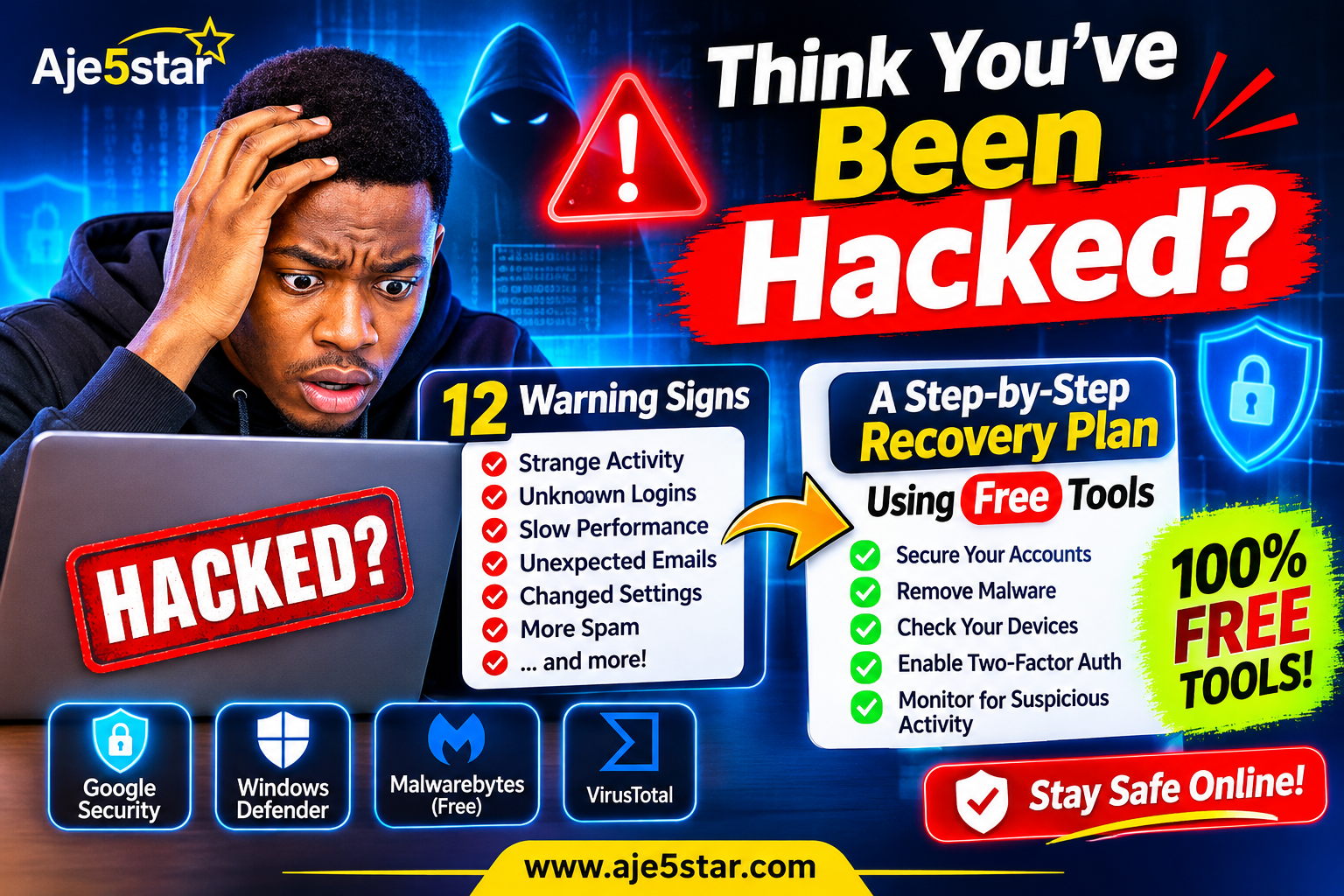
What Should You Do If Your Personal Information Is Stolen?
Act quickly if you believe your information has been compromised.
- Change the affected account password.
- Secure your email account first if it may be compromised.
- Enable two-factor authentication.
- Sign out unknown devices and sessions.
- Contact your bank if financial information is involved.
- Report suspicious transactions.
- Follow the relevant identity-theft reporting procedures in your country.
Do not pay someone who promises to recover your stolen information without verifying that they are a legitimate service provider.
Frequently Asked Questions
What is the best way to protect personal information online?
Use unique passwords, enable two-factor authentication, avoid suspicious links, update your devices, and limit the personal information you share publicly.
Can someone steal my information through public Wi-Fi?
Risks depend on the network and the websites or apps you use. Use encrypted services, avoid sensitive activity on untrusted networks, and keep your devices updated.
Is HTTPS completely safe?
No. HTTPS encrypts the connection, but it does not guarantee that the website itself is honest or legitimate.
Should I use a VPN?
A reputable VPN can help protect network traffic in certain situations, but it does not stop phishing, malware, weak passwords, or every type of tracking.
How often should I change my passwords?
Use strong, unique passwords and change them promptly if you suspect compromise or receive a credible security warning. Follow the security guidance of each service.
Is it safe to save passwords in a browser?
A reputable browser password manager can be useful when protected by strong device security. A dedicated password manager is another option.
Final Thoughts
Protecting your personal information online is not something you do once. It is an ongoing habit.
Start with strong passwords, two-factor authentication, software updates, and careful browsing. These simple actions can significantly improve your digital security.
Share this guide with friends and family so they can also learn how to stay safer online.
Explore more beginner-friendly technology guides and free online tools at Aje5star.com.