

Your phone buzzes. It is a password reset email you never asked for. Then a friend texts: “Did you just send me a weird link?”
That sinking feeling in your stomach is the moment most people think the same thing: “Have I been hacked?”
Take a breath. Account takeovers and malware infections are common, and most can be contained if you act quickly and in the right order. You do not need to be a security expert, and you do not need to spend money. You need a clear plan and a few free tools.
This guide gives you both. You will learn the warning signs, the exact steps to take (in the order that matters), which free tools help at each stage, and how to lock things down so it is much harder to happen again.
Think It’s Happening Right Now? Do These 4 Things First
- Use a different, trusted device if you can, such as a family member’s phone or a work computer you are allowed to use.
- Change the password of your main email account first. Email is the key to resetting everything else.
- Turn on two-factor authentication and sign out of all other sessions or devices.
- Contact your bank immediately if money or card details may be involved.
Table of Contents
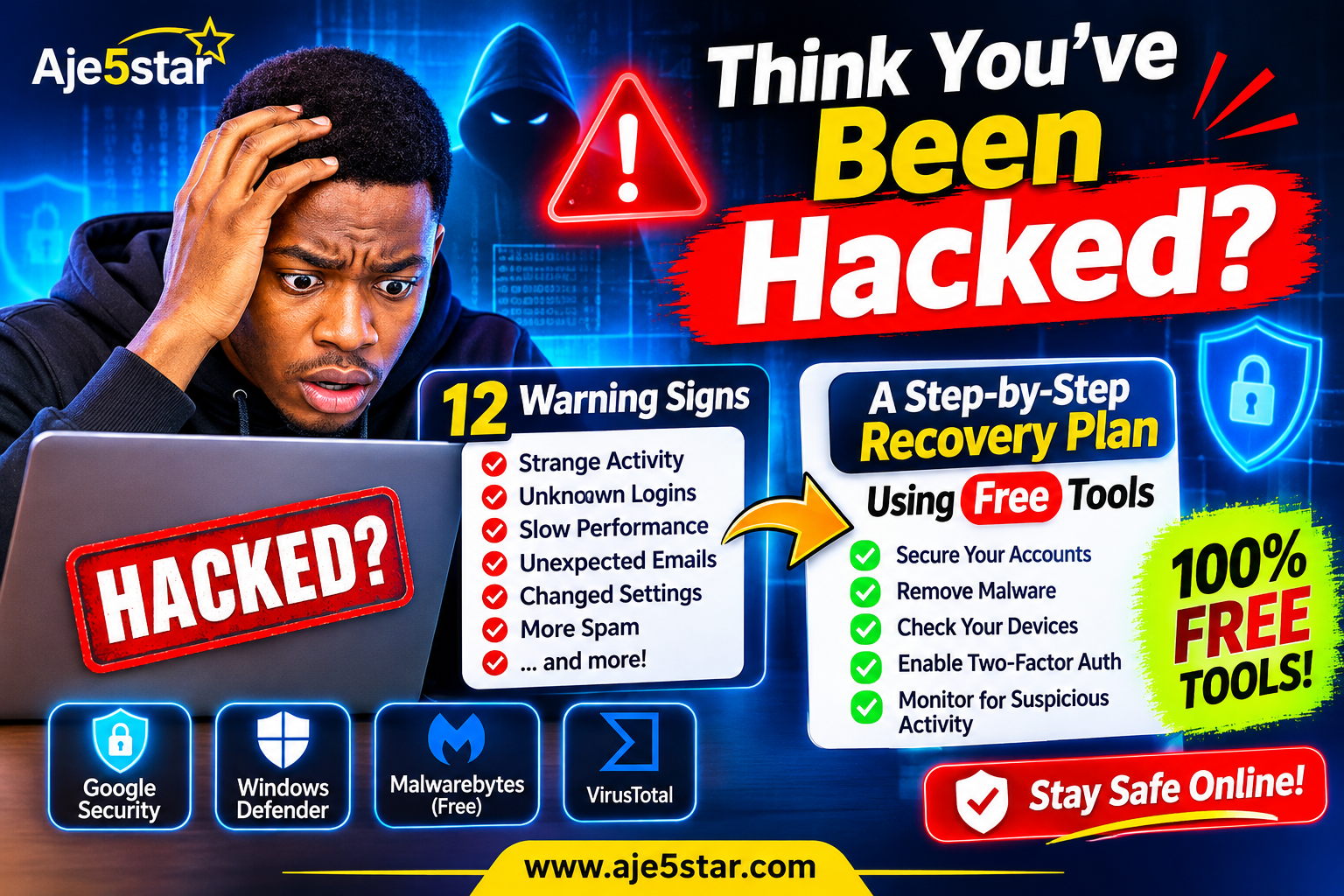
- 12 Warning Signs You May Have Been Hacked
- The 10-Step Recovery Plan
- Your Free Recovery Toolbox
- Mistakes That Make Things Worse
- After Recovery: A 7-Day Lock-Down Plan
- What If It’s Your Website?
- Frequently Asked Questions
1. 12 Warning Signs You May Have Been Hacked
One sign alone does not prove a hack, but several together deserve immediate attention.
| Warning Sign | What It Might Mean |
|---|---|
| Password reset emails or codes you did not request | Someone is trying to get into your account |
| Login alerts from unfamiliar places or devices | Your password may be exposed |
| Your password suddenly stops working | Someone may have changed it |
| Friends receive strange messages or links from you | Your email or social account may be compromised |
| Sent emails or posts you did not write | Account takeover |
| Unknown purchases or bank transactions | Payment details or accounts may be exposed |
| New email forwarding rules or filters you did not create | An attacker may be quietly copying your mail |
| Changed recovery email, phone number, or security questions | An attacker may be preparing to lock you out |
| Unfamiliar apps, browser extensions, or toolbars | Possible malware or unwanted software |
| Constant pop-ups, redirects, or a changed homepage | Possible adware or a browser hijacker |
| Your device is suddenly slow, hot, or the battery drains fast | Possible malicious software (but can have normal causes) |
| You entered details on a page that later looked fake | You may have been phished |
Not sure whether you were tricked by a fake message? Read our guide to spotting and avoiding online scams.
2. The 10-Step Recovery Plan
Order matters. Securing your email before anything else stops the attacker from using “forgot password” to take over your other accounts.
Step 1: Switch to a Safe Device and Network
If malware may be on your computer or phone, changing passwords on that device can hand the new passwords straight to the attacker. Use a different, trusted device to start. If you only have one device, run a security scan first (Step 6), then change your passwords.
Step 2: Secure Your Main Email Account First
Your email is the master key. Change its password to a strong, unique one that you have never used anywhere else. If you cannot sign in, use the provider’s official account recovery page, not a link from an email or text.
Step 3: Turn On Two-Factor Authentication (2FA)
Two-factor authentication means a stolen password alone is not enough to get in. Use an authenticator app rather than text messages where the service allows it. Free options include 2FAS. Save the recovery codes somewhere safe, offline.
Step 4: Sign Out Everywhere and Review Account Activity
In your account’s security settings, look for options such as “sign out of all devices,” “recent activity,” or “devices signed in.” Remove anything you do not recognize. Then check for things attackers like to leave behind:
- Email forwarding rules and filters
- Changed recovery email addresses or phone numbers
- Apps and services with access to your account
- Unfamiliar connected devices
Step 5: Check Whether Your Information Was Exposed
Search your email address on Have I Been Pwned or Mozilla Monitor to see whether it appears in known data breaches. Appearing in a breach does not mean someone is inside your account right now, but it tells you which passwords to change first.
Step 6: Scan Your Devices for Malware
- Windows: Open Windows Security, go to Virus & threat protection, update the protection definitions, and run a scan. Microsoft Defender is built in.
- Second opinion: Malwarebytes offers free scanning and removal options. Real-time protection typically needs a paid plan.
- Phone: Remove apps you do not recognize or no longer use, install updates, and download apps only from official stores.
Download security tools only from official websites. Fake “antivirus” downloads are a common way to get infected.
Step 7: Change Passwords on Your Other Important Accounts
After email, work through banking, shopping, social media, and cloud storage, plus any account that used the same or a similar password. A password manager makes this far easier. Bitwarden and KeePassXC both have free options and can generate unique passwords. If you already use Chrome and Google services, Google Password Manager can also flag weak or reused passwords.
Step 8: Protect Your Money
If you see unfamiliar transactions or shared card details:
- Call your bank or card provider using the number on your card or their official website
- Ask them to block or replace affected cards and review recent activity
- Consider placing a fraud alert or credit freeze where your country offers one
- Keep records: dates, screenshots, and reference numbers
If you are in the United States, the Federal Trade Commission’s IdentityTheft.gov can help you report identity theft and create a recovery plan. Outside the US, check your national consumer-protection or cybercrime reporting service.
Step 9: Warn the People Who Might Be Targeted
If your email or social account sent messages, tell your contacts not to click links or open attachments from you during that period. Attackers often use a hacked account to reach people who trust you.
Step 10: Report and Document
Report the compromise to the platform (most have a “hacked account” or “report” option) and keep notes on what happened and when. If it involved your workplace or school, tell your IT or security team right away.
3. Your Free Recovery Toolbox
| Problem | Free Tool | How It Helps |
|---|---|---|
| Might my email be in a breach? | Have I Been Pwned, Mozilla Monitor | Shows known breaches that included your email |
| Is this link or file safe? | VirusTotal | Checks a public link or non-sensitive file against many scanners |
| Suspicious link in a text or email | Malwarebytes free tools | Offers a scam link checker (do not open the link first) |
| Is my computer infected? | Microsoft Defender, Malwarebytes | Scans for malware and unwanted software |
| Weak or reused passwords | Bitwarden, KeePassXC, Google Password Manager | Creates and stores unique passwords |
| Stolen password risk | 2FAS (authenticator app) | Adds a second step to sign-ins |
| Annoying or risky web content | uBlock Origin, Malwarebytes Browser Guard | Blocks many ads, trackers, and known bad pages |
| Where to learn more | CISA | Government security guidance and resources, some aimed at organizations |
Privacy warning for VirusTotal: Do not upload confidential documents, customer files, or anything sensitive. Submitted material may be shared with security partners. Also remember that a clean scan does not guarantee a link or file is safe.
For a wider toolkit, see our list of the 20 best free cybersecurity tools for beginners.
4. Mistakes That Make Things Worse
- Changing passwords on an infected device. Scan or switch devices first.
- Clicking “recovery” links in emails or texts. Go to the official website directly instead.
- Paying anyone who says they can “recover your account.” Recovery scams target people who have just been hacked. Use only the platform’s official recovery process.
- Paying a ransom. Payment does not guarantee you will get your files back, and it can mark you as a willing payer.
- Installing several antivirus programs at once. They can conflict. One real-time protection program plus an on-demand scanner is enough.
- Reusing the old password with a small change. Make the new one completely different.
- Deleting everything immediately. Keep screenshots and notes. You may need them for your bank, the platform, or a report.
- Ignoring the “small” accounts. A forgotten shopping or forum account can share a password with an important one.
5. After Recovery: A 7-Day Lock-Down Plan
Once the emergency is over, use the next week to make your accounts much harder to break into.
| Day | Task | Why It Matters |
|---|---|---|
| Day 1 | Update your operating system, browser, and apps | Fixes known security holes |
| Day 2 | Set up a password manager and change your top 10 passwords | Ends password reuse |
| Day 3 | Turn on 2FA for email, banking, social media, and cloud storage | Blocks most password-only attacks |
| Day 4 | Review recovery emails, phone numbers, and connected apps | Stops attackers from keeping a back door |
| Day 5 | Clean up browser extensions and phone apps | Removes risky or unused software |
| Day 6 | Back up your important files and test one restore | Protects you from data loss and ransomware |
| Day 7 | Set a reminder to review security monthly | Makes safety a habit |
More ways to reduce your exposure are in our guide to protecting your personal information online.
6. What If It’s Your Website?
Website owners face a different set of warning signs:
- Strange redirects to other websites
- New admin users you did not create
- Unknown pages, spammy links, or odd text
- Your host or search engine warns that the site may be harmful
- Sudden slowdowns or unexpected file changes
If this is happening, change your admin and hosting passwords, remove unknown users, update WordPress, themes, and plugins, remove anything unused, and restore from a clean backup. Contact your hosting provider, who can often help scan and clean the site. Follow our full checklist in 20 essential tips to protect your WordPress website from hackers.
7. Frequently Asked Questions
How can I tell if my account was hacked?
Look for password reset emails you did not request, login alerts from unfamiliar places, messages or posts you did not send, changed recovery details, new forwarding rules, and unknown purchases. Check your account’s security activity page for devices and locations you do not recognize.
What should I do first if I think I’ve been hacked?
Use a trusted device, secure your main email account with a new unique password, turn on two-factor authentication, and sign out of all other sessions. Then work through your bank, other accounts, and device scans.
Can I fix this for free?
Mostly, yes. Built-in tools such as Microsoft Defender, free versions of Malwarebytes, password managers like Bitwarden, authenticator apps, and breach-checking sites cover the essential steps. Some real-time protection and advanced features cost money, but you do not need them to recover.
Does being in a data breach mean I was hacked?
Not necessarily. It means your information was exposed in an incident at some service. It is a warning to change passwords and enable 2FA, especially if you reused that password elsewhere.
Should I factory reset my device?
If scans keep finding problems, the device behaves strangely, or you cannot trust it, a factory reset can be the cleanest fix. Back up your important files first, and scan them before restoring. When in doubt, ask a trusted IT professional.
Is a VPN enough to keep me safe?
No. A VPN can protect certain network connections, but it does not stop phishing, malware, weak passwords, or account takeovers.
How do I avoid being hacked again?
Use unique passwords from a password manager, turn on 2FA, keep everything updated, back up important files, and treat unexpected links, attachments, and urgent requests with suspicion.
When should I contact the police or a professional?
Contact your bank right away for financial fraud. Consider reporting to local authorities or a national cybercrime service for identity theft, extortion, or large losses, and involve your IT or security team for work or school accounts.
Final Thoughts
Getting hacked is stressful, but it is rarely the end of the world. Act in the right order: secure your email, turn on 2FA, sign out everywhere, scan your devices, change your passwords, protect your money, and document what happened.
Then use the lock-down plan to build habits that make the next attack far less likely. No tool makes you invulnerable, but good habits and a few free tools stop most common attacks.
Want more practical, beginner-friendly security and technology guides? Explore free cybersecurity tools and more at Aje5star.com.